Mini Projector: 1080p Auto Focus, 4K Input, Android 11
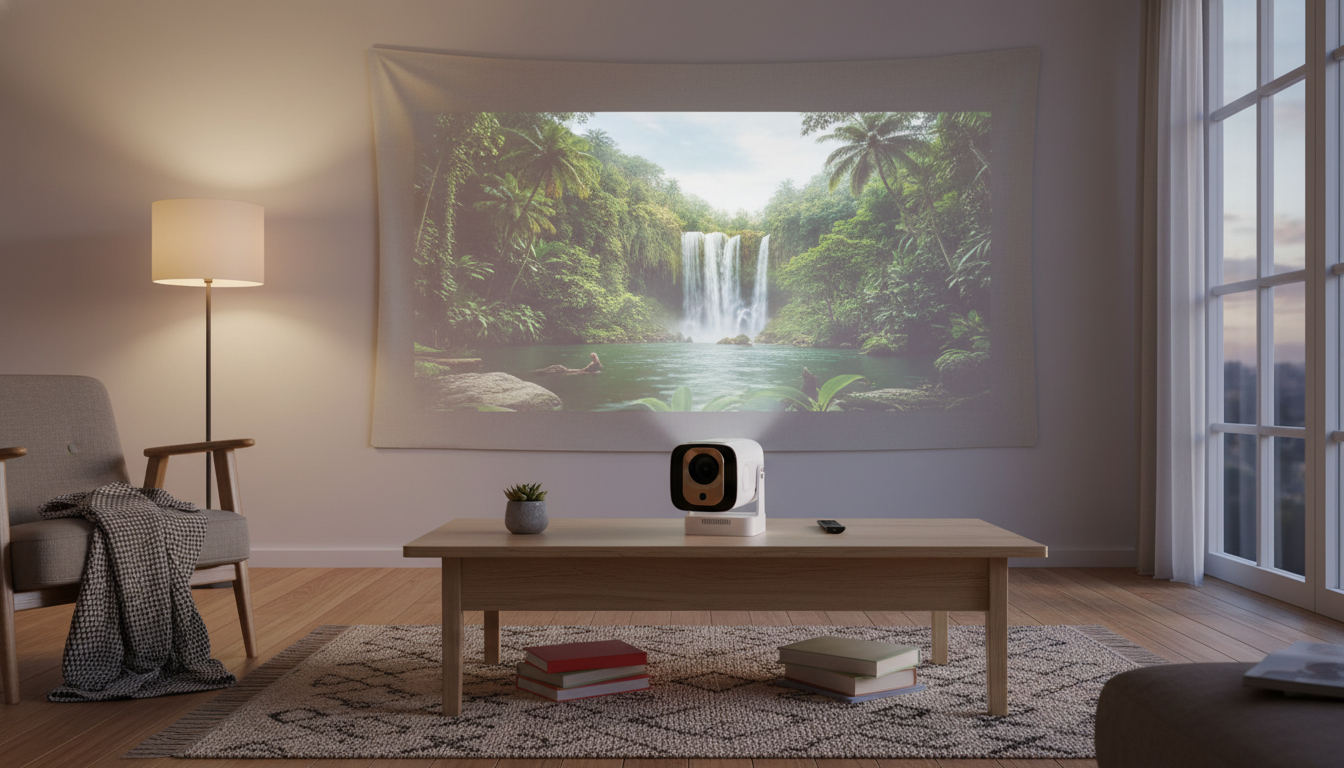
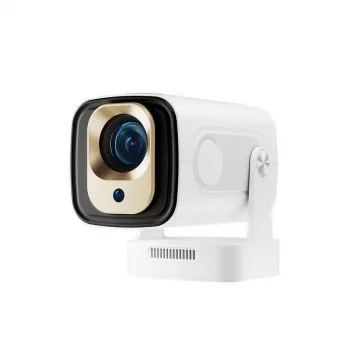
1080P Full HD Auto Focus Mini Projector with 4K Support and Android 11
A compact projector can turn a bedroom wall, backyard screen, or office space into a big viewing surface—without the hassle of constant manual focusing. This mini projector pairs 1080P Full HD playback with auto focus, 4K input support, and Android 11 for app-based streaming and flexible media playback. For anyone who wants a simple, budget-friendly way to go bigger than a TV, it’s built to set up quickly, stay sharp when you move it, and handle a wide mix of sources.
What This Mini Projector Is Best For
- Bedroom and apartment movie nights where space and portability matter
- Casual gaming and sports on a larger screen with quick setup
- Kids’ rooms and family areas where auto focus reduces fiddling
- Travel, camping, or temporary setups where a TV isn’t practical
- Light presentations and slideshows (best in dim rooms for stronger contrast)
If the goal is a big picture in a small footprint, a mini projector like this is usually at its best when the room can be dimmed and the unit can be placed on a steady surface. That combo helps the auto focus do its job and keeps the image looking clean.
Key Features That Change Everyday Use
- 1080P Full HD playback for clearer text and sharper edges than 720P-class models
- Auto focus to keep the image crisp after moving the projector or changing distance
- 4K support for accepting 4K sources and downscaling for display (final on-screen detail is limited by the projector’s native display system)
- Android 11 built in for app-based streaming and standalone playback without an external stick (app availability can vary by region and device certification)
- Mini form factor that’s easier to reposition for different rooms and screen sizes
Quick feature checklist
| Feature | What it means in real use | Tip |
|---|---|---|
| 1080P Full HD | Sharper movies and clearer subtitles than lower-resolution models | Use a high-quality source and keep the lens clean |
| Auto focus | Less time adjusting; stays clear after bumps or distance changes | Place on a stable surface to reduce refocus events |
| 4K support | Plays 4K input devices; converts to the projector’s output | Best paired with good bitrate streams or local files |
| Android 11 | Runs apps directly; reduces extra devices and cables | Update apps and limit background apps for smoother navigation |
| Portable size | Easy to move room-to-room | Plan power access and cable routing ahead of time |
Android 11 is designed to support modern app behavior and system controls, which can make navigation and app management feel more current than older projector operating systems. For an overview of what Android 11 introduced at the platform level, see Android Developers — Android 11 (Overview).
For wired sources, HDMI is the typical path for laptops, consoles, and streaming devices; a helpful reference for the standard itself is HDMI Licensing Administrator — HDMI Specifications Overview.
Setup Guide: From Box to Big Screen
- Placement: start centered to the screen/wall and level to reduce distortion
- Distance and size: adjust distance until the image fills the desired area, then let auto focus fine-tune clarity
- Wi‑Fi connection: connect to a stable network (5 GHz is often smoother when supported by the router and device)
- Android apps: sign in only to necessary services, install core streaming apps, and remove/disable unused ones if possible
- Sound: built-in speakers may be fine for small rooms; for fuller audio, connect an external speaker (wired is typically the most reliable)
A practical routine is to pick your viewing spot first (table, shelf, tripod stand), get the image roughly aligned, and then avoid moving the projector again. Auto focus is most helpful when it’s correcting small changes—not chasing constant repositioning.
Picture and Performance Tips (That Cost Nothing)
- Darken the room: lower ambient light for better blacks and color saturation
- Use a proper projection surface when possible: a screen or smooth white wall improves perceived sharpness
- Match output settings: set the source device to a compatible resolution and refresh rate to avoid scaling artifacts
- Keep the lens clean: dust and fingerprints can soften the image significantly
- Ventilation: ensure airflow around the projector to maintain consistent brightness and prevent thermal throttling
One small change that often helps right away: reduce keystone correction when possible. Keystone is convenient, but heavy correction can make the picture look less crisp than a naturally square, centered setup.
Android 11: Streaming, Casting, and Offline Playback
Common Issues and Fast Fixes
Price, Availability, and What’s Included
Product link: 1080P Full HD Auto Focus Mini Projector with 4K Support and Android 11
More in-stock picks
- Kids Wooden Tool Bench Set (great for hands-on play while the family room is set up for movie night)
- 5-Step Folding Dog Stairs for Cars (a practical add-on for travel days when you’re packing gear)
- Personalized Balloon Letter Necklace (a small gift option that pairs well with special-occasion watch parties)
FAQ
Does 4K support mean the projector displays in 4K?
No. “4K support” typically means it can accept a 4K signal from a compatible device and then downscale it to the projector’s native display output, so on-screen detail is limited by the projector’s hardware resolution.
Will Android 11 let streaming apps run without a separate stick?
Often yes—many apps can run directly on the built-in Android system, reducing extra devices and cables. However, availability and playback quality can vary based on app compatibility, updates, and whether the device meets specific certification/DRM requirements.
How do auto focus projectors keep the image sharp?
They detect when the image is out of focus and automatically adjust the lens to restore clarity. For best results, keep the projector steady, minimize frequent movement, and clean the lens so the focus system isn’t working through smudges or dust.








Leave a comment