USB Wired Headphones with Mic: Setup, Comfort, Call Clarity
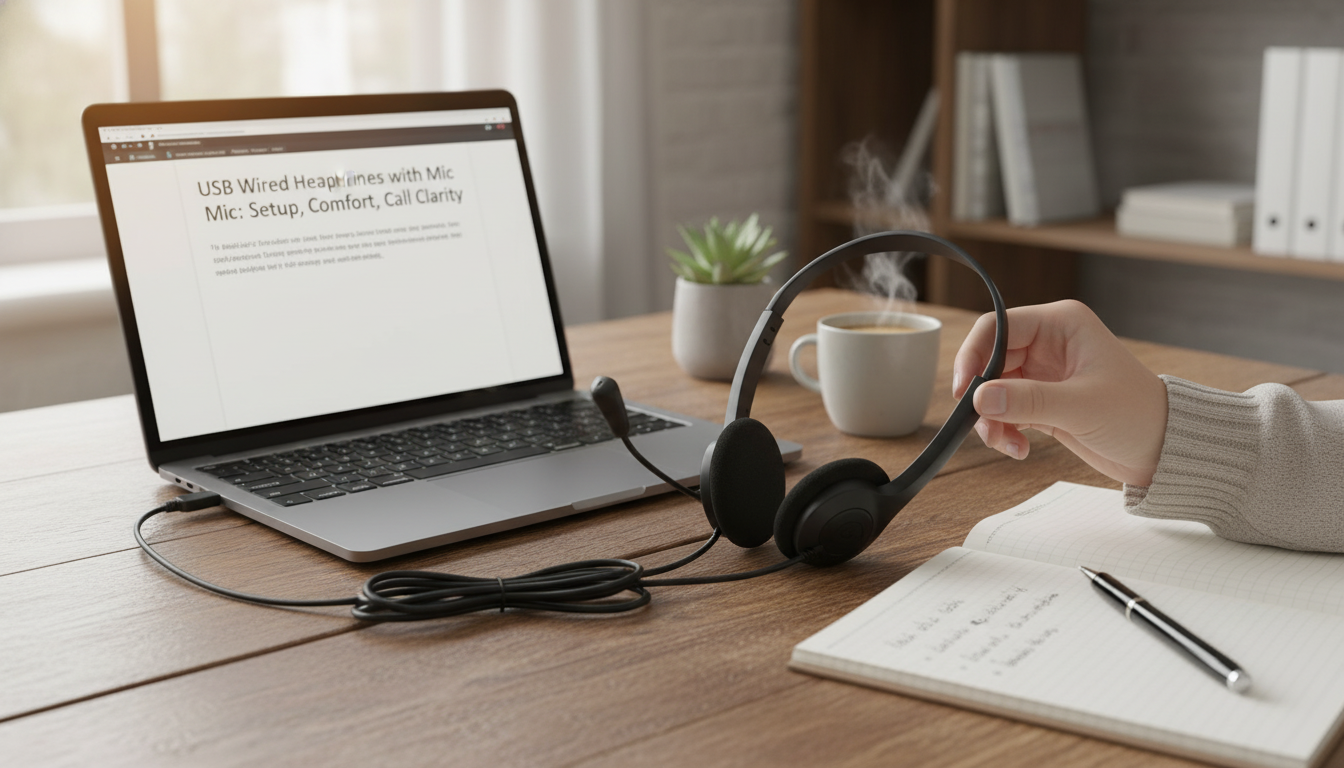
USB Wired Headphones with Mic for Clear Calls, Classes, and Daily Listening
USB wired headphones with a built-in microphone offer a straightforward way to get consistent audio and clear voice pickup on laptops and desktops—without worrying about battery life, pairing issues, or flaky connections. They’re especially handy when you need your computer to “just recognize” the headset every time, whether you’re joining a meeting, sitting through an online lecture, or taking a quick call between tasks. Below is a practical guide to what matters most for comfort, sound, and compatibility, plus a few simple habits that help you sound clearer to others.
What Makes USB Headphones Different
Unlike traditional 3.5 mm headsets, USB wired headphones act like a small external sound card. That changes how audio is processed and can make setup more predictable on many computers.
- Digital audio over USB can bypass some computer headphone-jack noise and hiss, depending on the device.
- Plug-and-play setup is common on Windows, macOS, and many Chromebooks (app permissions may still be required).
- A built-in USB audio device typically appears in system sound settings as a separate input/output choice.
- Useful for shared computers: consistent performance without relying on worn 3.5 mm jacks.
For step-by-step system checks, official troubleshooting pages can help identify whether the issue is the headset, the port, or the OS configuration. See Microsoft Support, Apple Support, or Google Chromebook Help.
Quick Compatibility Checklist
- Connection type: USB-A vs USB-C (a simple adapter may be needed depending on the computer).
- Operating system support: confirm the headset is recognized as a USB audio device in sound settings.
- App permissions: conferencing apps may require microphone access enabled at the OS level.
- USB hubs/docks: if audio drops out, test direct connection to the computer to rule out power or bandwidth issues.
Compatibility and Setup at a Glance
| Device | What to Check | Common Fix if It’s Not Working |
|---|---|---|
| Windows PC | Sound settings for Output/Input device selection | Set the headset as default input/output; disable exclusive mode if conflicts occur |
| Mac | Sound settings and app mic permissions | Choose the headset in Sound; allow microphone access in Privacy settings |
| Chromebook | Audio devices in system tray | Select the headset for mic and speakers; reconnect USB if it disappears |
| Dock/Hub | Stable power and port behavior | Try a different port or connect directly to the computer |
Comfort and Fit for Long Sessions
If you’re wearing a headset for multiple hours, comfort impacts focus as much as sound quality. A few small details make a noticeable difference over time.
- Headband pressure: lighter clamp reduces fatigue during meetings or study blocks.
- Ear pad material: softer padding improves comfort; breathable pads help with heat build-up.
- Cable length: choose a length that reaches the computer without pulling or creating desk clutter.
- Inline controls (if included): convenient for quick mute/volume changes without switching windows.
For desk use, aim for a cable that can route behind a monitor or along the edge of a desk. If the wire is constantly tugging, even a great headset will feel annoying during long calls.
Microphone Clarity: What to Look For
Clear calls are often less about “studio quality” and more about consistent mic placement and reliable input selection.
- Mic placement: a closer mic position usually improves voice clarity and reduces room echo.
- Noise handling: basic passive noise reduction comes from positioning and consistent speaking distance.
- Mute behavior: confirm whether mute is handled by hardware (inline switch) or software (app button).
- Monitoring: if sidetone is unavailable, test a short recording to avoid speaking too quietly.
A quick win: position the mic slightly off to the side of your mouth (not directly in front) to reduce breath noises while keeping your voice full and intelligible.
Sound Quality for Music, Video, and Calls
USB wired headphones can sound different depending on their tuning and how your computer processes audio. For daily listening, focus on whether voices are easy to understand at moderate volumes.
Everyday Use Cases That Benefit Most
Care, Handling, and Troubleshooting
USB Wired Headphones with Mic: Product Snapshot
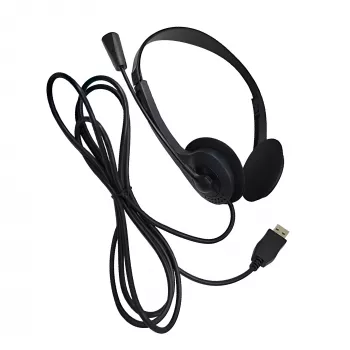
For a simple, budget-friendly way to plug into a computer via USB for listening and voice chat, consider the USB Wired Headphones with Mic. It’s best suited for straightforward setups where consistency matters more than advanced wireless features.
Current Listing Details
| Item | Price | Availability | Link |
|---|---|---|---|
| USB Wired Headphones with Mic | $10.67 | In stock | View product |
More In-Stock Picks
FAQ
Do USB wired headphones with a mic work on any computer?
Most modern Windows, macOS, and Chromebook devices support USB audio, but you’ll want to confirm your port type (USB-A vs USB-C) and check that the headset appears as an input/output device in sound settings. Microphone privacy permissions and some hubs/docks can also affect detection.
Why is the microphone not working even though the headphones have sound?
This usually happens when the computer (or the calling app) is still using a different microphone. Select the USB headset as the input device in both system settings and the app, confirm OS-level mic permissions, then reconnect using a different USB port and test with a basic voice recorder.
Are USB headphones better than 3.5 mm for calls?
USB headsets can be more reliable because they use a built-in digital audio device instead of depending on a computer’s 3.5 mm jack, which may be worn or noisy. Actual call quality still varies by headset and computer, but consistent detection and fewer connection issues are common advantages.










Leave a comment